

In this content, we will explore cloud storage which is the best, analyzing reliable platforms, their pros, cons and features offered.
Cloud storage is an indispensable tool for those looking for security, practicality and quick access to files on any device.
Find out how to make the most of the free versions and choose the one that best suits your needs.
Content Index
What is cloud storage and how does it work?
Cloud storage is an increasingly popular technological solution that allows you to securely store data on remote servers, accessible via the internet.
Instead of keeping files on physical devices such as hard drives or flash drives, users can store them in specialized data centers, with the ability to access them from anywhere and at any time.
Read too:
- ChatGPT 4 Free: 6 ways to use it without paying
- How to Free Up Space on Google Photos: Step by Step
- The Best Photo Collage Apps on Cell Phone
This method offers several advantages, including increased security, ease of access, and scalability. Additionally, cloud storage options are often flexible and can be tailored to the needs of the user, whether for individuals or businesses. Throughout this article, we will explore the main aspects of this service and how it can benefit your digital routine.
The best free cloud storage platforms
Below we provide an in-depth analysis of each free cloud storage service, including their main features, advantages, and limitations. With this information, you will be able to decide cloud storage which is the best for your needs. In addition, you will be able to assess whether there is unlimited cloud storage, so be sure to check it out!
1. Google Drive
- Availability: compatible with Android, iOS, Windows and Mac;
- Initial free space: 15 GB.
O Google Drive is one of the most complete and popular solutions on the market. Developed by Google, it offers a wide range of features that go beyond storage. Its integration with Google Workspace (Docs, Sheets, Slides, and more) lets you create, edit, and share files directly from the cloud, without the need for additional programs.
How to access Google Drive?
- Computer: access the website Google Drive and sign in with your Google account. You can use the web interface to upload, organize, and download files;
- Cell phone: the application is available for free download at Google Play Store (Android) and in App Store (iOS).
Pros:
- Large free space: 15 GB is one of the largest free capacities on the market;
- Integrated tools: With Google Workspace, you can create and edit documents directly in the cloud;
- Easy sharing: allows you to share files or folders with public or private links;
- Automatic backup: ideal for storing photos, contacts and even Android messages.
Cons:
- Shared space: the 15 GB is divided between Google Drive, Gmail and Google Photos;
- Without free unlimited plan: Larger plans require subscription.
Free plan limitations:
Despite the generous space, integrated use can quickly eat up the 15GB, especially for those who receive a lot of emails with attachments or back up high-resolution photos.
Tip: To free up space, delete large files such as old videos, unnecessary emails, and old backups from your phone.
2. Dropbox
- Availability: compatible with Android, iOS, Windows, Mac and Linux;
- Initial free space: 2 GB.
O Dropbox is a pioneer in the cloud storage market and is still one of the best options for those looking for efficient synchronization between devices.

With its intuitive interface and minimalist design, it is ideal for those who want simplicity in file management.
How do I access Dropbox?
- Computer: access the website Dropbox or install the desktop app to automatically sync specific folders on your computer;
- Cell phone: Available in major app stores, the app lets you upload photos, create folders and access documents.
Pros:
- Fast Sync: files sent from one device are instantly updated on the others;
- Simple sharing: allows you to create public links for sending large files;
- App integration: compatible with popular tools like Slack, Zoom It is Trello.
Cons:
- Limited free space: only 2 GB, not enough for larger files or multiple projects;
- Restricted premium features: Some tools, such as version history, are exclusive to paid plans.
Free plan limitations:
Limited storage is a big obstacle for users who work with a lot of files. Additionally, there is a limit on simultaneously connected devices in the free version.
Tip: Use Dropbox to store small files and use other services for larger files.
3. OneDrive
- Availability: Windows, Android, iOS and Mac;
- Initial free space: 5 GB.
O OneDrive, developed by Microsoft, is the perfect choice for those who already use the Windows ecosystem and Office suite applications. It offers direct integration with Word, Excel, PowerPoint and Outlook, facilitating workflow in corporate or academic environments.
How do I access OneDrive?
- Computer: It is integrated into the Windows system. Just log in with your Microsoft account. Mac users can download the application from the official website;
- Cell phone: the app is available for free for Android and iOS, with automatic photo backup features;
Pros:
- Automatic synchronization with Windows: allows you to save documents directly to OneDrive when creating or editing in Office;
- Offline access: available for previously synchronized files;
- Security: Provides two-factor authentication options.
Cons:
- Limited free space: only 5 GB on the basic plan;
- Limited integration with Apple devices: It works, but it's not as intuitive as iCloud.
Free plan limitations:
Space can quickly fill up with automatic backups or large media files.
Tip: Disable automatic backup of large folders such as “Images” or “Videos”, to save space.
4. MEGA
- Availability: Android, iOS, Windows, Mac and Linux;
- Initial free space: 20 GB.
O MEGA is an excellent option for those looking for unlimited cloud storage in terms of security.
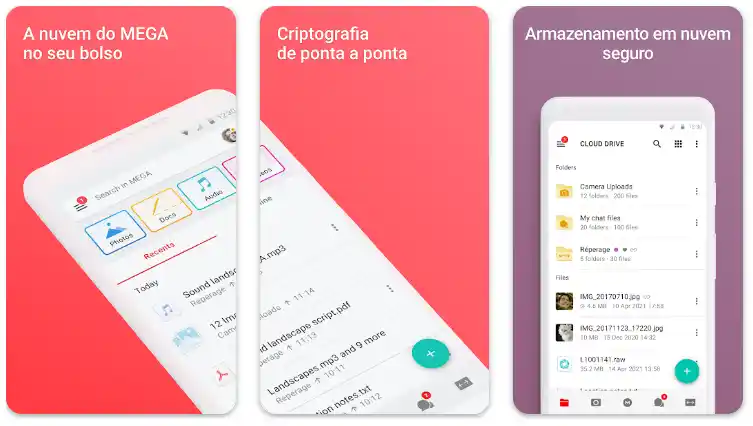
Its end-to-end encryption ensures that only you have access to your data, making it a popular choice among privacy-conscious users.
How to access MEGA?
- Computer: visit the official website MEGA to send files or install the desktop app for automatic syncing;
- Cell phone: The app is simple and offers automatic photo backup.
Pros:
- Generous free space: 20 GB for new users, with bonus options when inviting friends;
- High security: data is encrypted before being sent;
- Advanced features: has integrated secure chat for communication.
Cons:
- Transfer limit: the free plan restricts the amount of data that can be uploaded or downloaded per day;
- Complex interface: can be intimidating for first-time users.
Free plan limitations:
Transfer restrictions can be frustrating for those who need to access large files frequently.
Tip: Use MEGA to store sensitive and important documents, but consider other platforms for ongoing file sharing.
5. iCloud
- Availability: iOS, Mac and Windows;
- Initial free space: 5 GB.
For Apple ecosystem users, the iCloud is practically indispensable. It automatically syncs photos, contacts, notes, and other data, ensuring that all your information is available across your devices.
How to access iCloud?
- Computer: Mac users have iCloud built into their system. On Windows, you need to install the app;
- Cell phone: iCloud is automatically enabled on iOS devices.
Pros:
- Automatic synchronization: ideal for automatic backups and integration with native Apple applications;
- Accessibility: allows you to easily restore devices with saved data;
- Security: offers advanced features such as two-factor authentication.
Cons:
- Limited space: the 5GB is quickly consumed by device backups
- Less usefulness outside the Apple ecosystem: Although it works on Windows, it is not as intuitive as other options.
Free plan limitations:
In addition to limited space, it is not possible to disable automatic application backups, consuming space unnecessarily.
Tip: Only use iCloud to save essential documents and turn off automatic backups for rarely used apps.
Comparison of free cloud storage platforms
Below, you will find a detailed comparison of the main free cloud storage platforms, considering space, features, security and limitations, to help you make your choice.
| Platform | Free Space | Resources | Limitations | Security | Availability |
|---|---|---|---|---|---|
| Google Drive | 15 GB | Google Workspace integration, automatic synchronization | 15 GB limit for all Google services | Encryption in transit and at rest | PC, Android, iOS |
| Dropbox | 2 GB | Fast synchronization, integration with multiple tools | 2GB limit in free version | Encryption in transit and at rest | PC, Android, iOS |
| OneDrive | 5 GB | Office 365 integration, file synchronization | 5 GB limit for free version | Encryption in transit and at rest | PC, Android, iOS |
| iCloud | 5 GB | Integration with Apple devices, automatic backup | 5 GB limit for photos, documents and backups | Encryption in transit and at rest | PC, Mac, iOS |
| pCloud | 10 GB | Synchronization, automatic backup, support for multiple file formats | 10 GB limit, with the possibility of gaining more space through promotions | Encryption in transit and at rest | PC, Android, iOS |
Quick Tips:
- Google Drive It is ideal for those who already use the Google ecosystem and need integration between several tools;
- Dropbox offers excellent synchronization, making it a good option for those who need ease in collaboration and sharing;
- OneDrive is the best choice for those who regularly use the Microsoft Office;
- MEGA It is recommended for those who prioritize security and encryption, being excellent for storing sensitive data;
- iCloud It's perfect for Apple device users, but with limited space, it's best for those who are already immersed in the Apple ecosystem.
Benefits of Using Cloud Storage Platforms
Below, you can explore the various advantages that cloud storage offers, such as:
- Accessibility from anywhere: the ability to access your files from different devices and locations;
- Security: how cloud platforms implement encryption and automatic backup to protect data;
- Saving physical space: elimination of the need for physical storage devices such as hard drives and pen drives;
- Ease of sharing and collaboration: how the cloud makes it easier to share files with others and collaborate in real time;
- Data Backup and Recovery: how the cloud offers an easy and secure way to back up important files and recover them in case of failure.
Cloud Storage FAQs
Check out the answers to the most common questions about cloud storage, helping you choose the best platform and optimize its use in a safe and efficient way.
How to choose the best cloud storage platform?
Choosing the best platform for you depends on your specific needs. If you’re looking for more free space, Google Drive and pCloud stand out, with generous offers on their free plans. On the other hand, if you’re more interested in seamless integration with other services, OneDrive may be the best option, especially for those using the Office 365 suite.
What happens if I exceed my free storage limit?
If you exceed your free storage limit, you have two options: either you choose to pay for extra space, or you need to free up space by deleting old files.
Some platforms offer a way to optimize space usage, such as Google Drive, which allows you to delete old files that you no longer access or use backup tools to keep old data out of the main space.
What are the main security risks in cloud storage?
While cloud storage is generally secure, it's important to be aware that security also depends on the settings you choose.
Make sure to use strong passwords, enable two-factor authentication, and choose platforms that use end-to-end encryption, such as Dropbox and Google Drive. Also, be careful about inadvertent file sharing.
Is it possible to use cloud storage on mobile devices?
Yes, most cloud storage platforms, such as Google Drive, Dropbox, and OneDrive, offer mobile apps. These apps make it possible to access, share, and edit files directly from your phone or tablet, ensuring convenience and flexibility for your day-to-day life.
Is cloud storage safe for storing sensitive documents?
Cloud storage is safe, but the security depends on the platform and privacy settings you choose. Platforms like pCloud and Google Drive offer encryption in transit and at rest, which ensures that your data is secure. However, for highly sensitive files, you may want to add an extra layer of security, such as encrypting the files before uploading them to the cloud.
Conclusion
Choosing the best platform cloud storage depends on your needs. If you are looking for productivity, Google Drive is a great choice. For those who prioritize security, the MEGA stands out. Apple users can already benefit from iCloud. Evaluate the pros and cons of each solution and choose the one that best suits your routine.

