

Here, we will teach you how free up space on Google Photos efficiently without losing important files. You'll learn how to delete large files, clear the trash, and even manage storage efficiently to ensure your photos and videos stay safe.
O Google Photos is one of the most widely used tools for storing and organizing photos and videos. However, over time, you may need to free up space in your Google account to continue enjoying all the features it offers.
This guide is perfect for anyone looking for a detailed step-by-step guide on how to manage Google Photos storage and don't know where to start.
Content Index
Understanding Google Account Storage
Before learning How to free up space on Google Photos , it is important to understand how storage works within your Google Account, which covers Google Photos, the Gmail and the Google Drive. These three services share the same storage space, so when you reach the limit, you may need to take action to free up space.
Your Google account offers a free amount of storage, usually 15 GB, that is shared between Google Photos, Gmail, and Google Drive. This means that when you send large emails in Gmail, upload documents to Google Drive, or store photos in Google Photos, all of these files will count towards this space.
Read too:
- The Best Photo Collage Apps on Cell Phone
- How to recover photo from Whatsapp
- How to Unlock a Cell Phone With a Password: Step by Step!
- How to restore deleted WhatsApp messages
This means that if the space is full, you will need to take some steps to free up storage.
However, checking how much space you have available in your Google Account is easy. To do so, follow the steps below:
- Access the Google Storage Page here or in the app settings;
- You'll see space usage across Google Photos, Gmail, and Google Drive;
- From there, you can decide whether you need to free up space or purchase more storage.
How to Free Up Space on Google Photos
Now that you understand how storage works, it's time to learn how to free up space on your Google Photos. See some effective options.
For Android:
- Open the Google Photos app
Open the application Google Photos on your Android device. - Check storage space
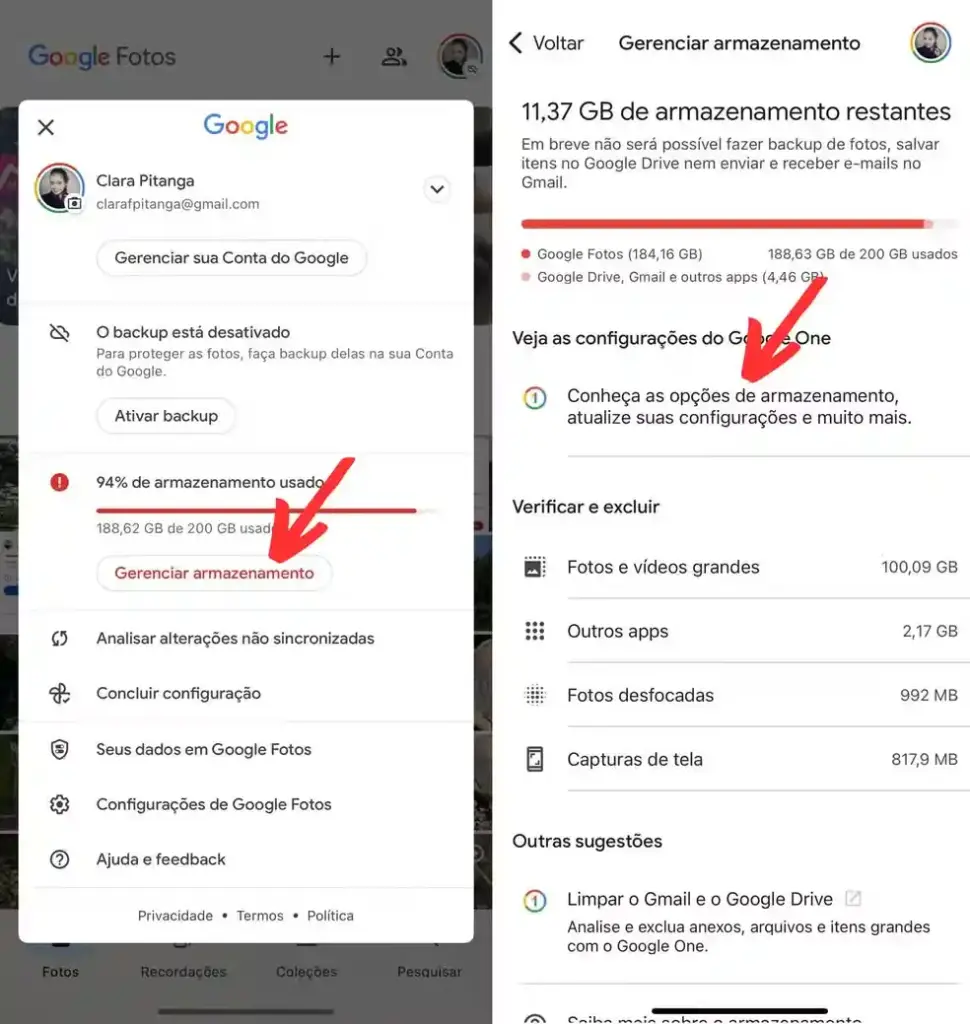
Tap on the avatar icon in the upper right corner, then tap "Storage" to see how much space is being used and how much remains available.
- Delete large photos and videos
- Tap on “Manage storage” or “Free up space”;
- Select the option “Large photos and videos” to identify larger files that can be deleted;
- Select the photos and videos you want to delete and tap the icon bin to remove them.
- Clear the Recycle Bin
After deleting, photos go to the trash and will remain there for 30 days. To free up space immediately, go to "Bin", select "Empty" to delete permanently. - Free up space automatically
If you enable the option “Free up space”, Google Photos can remove photos and videos already saved in the cloud, freeing up space on your device without permanently deleting them.
For iOS (iPhone/iPad):
- Open the Google Photos app
Start the Google Photos on your iOS device. - Check storage
Tap on the avatar icon in the upper right corner and access "Storage" to see how much space has been used. - Delete large photos and videos
- In the menu of “Manage storage”, search for “Large photos and videos”.
- Select the files you want to delete and tap the icon bin to remove them.
- Clear the Recycle Bin
Go to the "Bin", select the items and click "Empty" to remove permanently. - Free up space on your device
When using the option “Free up space”, Google Photos can remove local copies from your device and keep photos in the cloud, freeing up memory on your iPhone without losing your images.
On Computer (via browser):
- Access Google Photos
Go to the website of Google Photos in photos.google.com. - Check storage
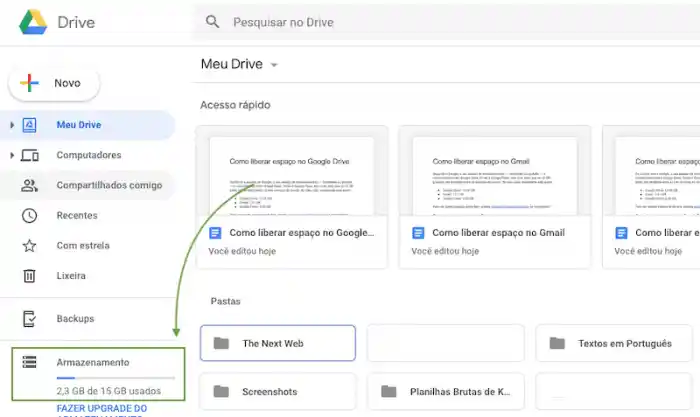
In the bottom left corner you will see a bar "Storage" which shows how much space is being used.
- Delete large photos and videos
- click in “Manage storage”;
- Access the section “Large photos and videos” to view larger files;
- Select the files and click on trash icon to delete.
- Clear the Recycle Bin
After deletion, the media goes to the "Bin". To free up space immediately, go to the bin and click on “Empty Trash”. - Back up photos and videos before deleting
If you want to ensure that your media is preserved, back it up to your computer before deleting the photos.
Delete Duplicate Photos in Google Photos
One of the easiest ways to free up space is by deleting duplicate photos. Google Photos has a feature that can identify these duplicates, making the process easier. Check it out How to delete duplicate photos in Google Photos:
- In Google Photos, go to the menu settings;
- Activate the option Remove Duplicates. The app will automatically search for duplicate or similar photos and delete them.
Clear the Recycle Bin
Google Photos keeps deleted files in the Bin for 30 days. To free up space immediately, you need to empty the trash.
- Access the Bin:
- Select Empty Trash to permanently delete photos.
Using Google One
If you are constantly hitting your storage limit, you may want to consider purchasing more space on your Google One, a paid tool that offers extra storage for Google Photos, Drive, and Gmail.
O Google One offers different storage plans, with prices varying depending on the amount of space required. Below are the most common plans:
- 100 GB: ideal for those who need more space for photos and emails;
- 200 GB: Great for families or users with lots of files on Google Drive;
- 2TB or more: recommended for companies or users with large volumes of data.
How to Upgrade Your Storage Plan
- Open the application Google One or access Google One;
- Tap on To sign or Change plan;
- Select the desired plan and complete the payment process.
Media Backup and Security
Before you delete any photos or videos, it's important to make sure your media is safe. Here's how you can back them up.
- Open the Google Photos and go to settings;
- Enable the option of Backup and Synchronization;
- Make sure your photos and videos are automatically saved to the cloud.
Deleting photos and videos without backing them up is risky. Once deleted, you won't be able to recover them unless you have a copy saved somewhere else.
Alternatives to Expand Storage
When your Google Photos storage runs out, there are several ways to expand your capacity without losing important files. Although buy more storage on Google One is the most straightforward solution, other options can also be considered depending on your needs.
- Google One: Simple, Seamless Expansion
Google One offers paid plans that increase the amount of shared space between Google Photos, Google Drive, and Gmail. Additionally, you can share the plan with up to 5 people and have access to specialized support. It is a convenient option for those who already use Google services.
- Other Cloud Storage Services
If you are looking for alternatives outside of Google, services like Dropbox, OneDrive It is iCloud are good options. They offer different storage capacities, with free and paid plans, and may be ideal depending on the other devices you use. The advantage of these services is the easy synchronization between devices.
- Physical Storage: A More Traditional Option
Devices like external hard drives or Portable SSDs offer large storage capacities at a one-time cost, with no monthly fees. While convenient and secure, they require a bit more manual management and care with regular backups.
- Cost and Benefit Comparison
Choosing between cloud and physical storage depends on your preferences. The cloud offers ease of access and convenience, while physical storage has the advantage of having no recurring costs. Evaluate your needs to choose the best option.
Restore Items from the Recycle Bin
If you accidentally deleted photos or videos on Google Photos, don't worry: you can easily restore them. When an item is deleted, it goes to the bin and remains there for up to 30 days, before being permanently deleted. This recovery process is simple and can be done in just a few steps.
To restore items, follow these steps:
- On Android or iOS:
- Open the Google Photos and tap on the Trash icon (usually located in the side menu or bottom bar);
- Find the items you want to restore;
- Select the files and tap on the option Restore.
- On the computer:
- Access photos.google.com and click on the menu Bin;
- Select the items to be restored;
- click in Restore and that's it, your files will be back in your Google Photos library.
It is worth noting that when you restore items from the trash, they will once again take up space on your storage. Therefore, it is important to monitor the available space in your Google account to ensure that you are not reaching the storage limit.
Tips for Managing Storage Efficiently
Keep the storage of Google Photos Organized and optimized is essential to avoid running out of space. Here are some effective tips for managing your content:
- Do regular cleaning: perform periodic cleanings in your storage, deleting photos and videos that are no longer needed. This helps free up space and keep everything organized;
- Reduced quality option: Google Photos offers the option to “Storage Economy”. By using it, you store photos and videos with reduced quality, but without losing much of the original quality. This saves a lot of space;
- Delete duplicate photos: Many times, duplicate photos take up space unnecessarily. Use search tools to find and delete these duplicates, ensuring more efficient storage;
- Check the trash: before deleting anything permanently, check your trash. Deleted photos and videos stay there for 30 days, giving you the chance to recover them if you change your mind;
- Consider Google One: If you are running out of storage, consider subscribing to Google One. It offers additional plans to expand storage and keep your files in high quality without worrying about space.
Frequently Asked Questions about Google Photos Storage
Below, we will clarify these questions in a practical and objective way, to ensure that you have all the information you need to manage your storage space effectively.
1. Can I restore files I deleted from the Google Photos Recycle Bin?
No, once items are deleted from the Recycle Bin, they are permanently deleted and cannot be recovered. Therefore, it is crucial to check and ensure that the files you want to delete are actually ready to be removed.
2. How do I know if I'm using my Google Photos space correctly?
The best way to check this is to log in to your Google Account and check your available storage. Google Photos shares space with Gmail and Google Drive, so it’s important to monitor your storage usage across all platforms to make sure you’re not exceeding your limit.
3. Is it possible to store photos and videos in high quality without taking up so much space?
Yes! Google Photos offers a backup option to “Storage savings”, which allows you to reduce the quality of images and videos, helping to save space without losing a significant amount of quality.
4. Should I pay for Google One to get more space on Google Photos?
Not necessarily. If you need more space and don’t want to worry about deleting photos or videos, Google One offers paid plans that expand your storage space. However, if you’d rather not pay, you can try to free up space with the tips we’ve provided throughout this article.
Conclusion
Free up space on Google Photos is essential to ensure that you always have enough space for new files and to keep your device running smoothly. Follow the tips and steps in this guide to optimize your storage, keeping your photos and videos safe and well organized.
Sources:

