

Here, we'll teach you how to efficiently free up space in Google Photos without losing important files. You'll learn how to delete large files, empty the trash, and even manage storage efficiently to ensure your photos and videos remain safe.
Google Photos is one of the most widely used tools for storing and organizing photos and videos. However, over time, you may need to free up space in your Google account to continue enjoying all the features it offers.
This guide is perfect for anyone looking for a detailed step-by-step guide on how to manage Google Photos storage and doesn't know where to start.
Table of Contents
Understanding Google Account Storage
Before learning how to free up space in Google Photos , it's important to understand how storage works within your Google Account, which includes Google Photos , Gmail , and Google Drive . These three services share the same storage space, so when you reach your limit, you may need to take action to free up space.
A Google account offers a certain amount of free storage, usually 15 GB, shared between Google Photos, Gmail, and Google Drive. In other words, when you send large emails in Gmail, upload documents to Google Drive, or store photos in Google Photos, all those files are counted towards this storage space.
Read also:
- The Best Photo Collage Apps for Your Phone
- How to recover a photo from WhatsApp
- How to Unlock a Cell Phone with a Password: Step by Step!
- How to restore deleted WhatsApp messages
This means that if the space is full, you will need to take some steps to free up storage.
However, checking how much space you have available in your Google Account is easy. To do this, follow the steps below:
- Access the Google storage page here or in the Settings app;
- You will see storage usage in Google Photos, Gmail, and Google Drive;
- From there, you can decide whether you need to free up space or buy more storage.
How to Free Up Space in Google Photos
Now that you understand how storage works, it's time to learn how to free up space in Google Photos . Here are some effective options.
For Android:
- Open the Google Photos app.
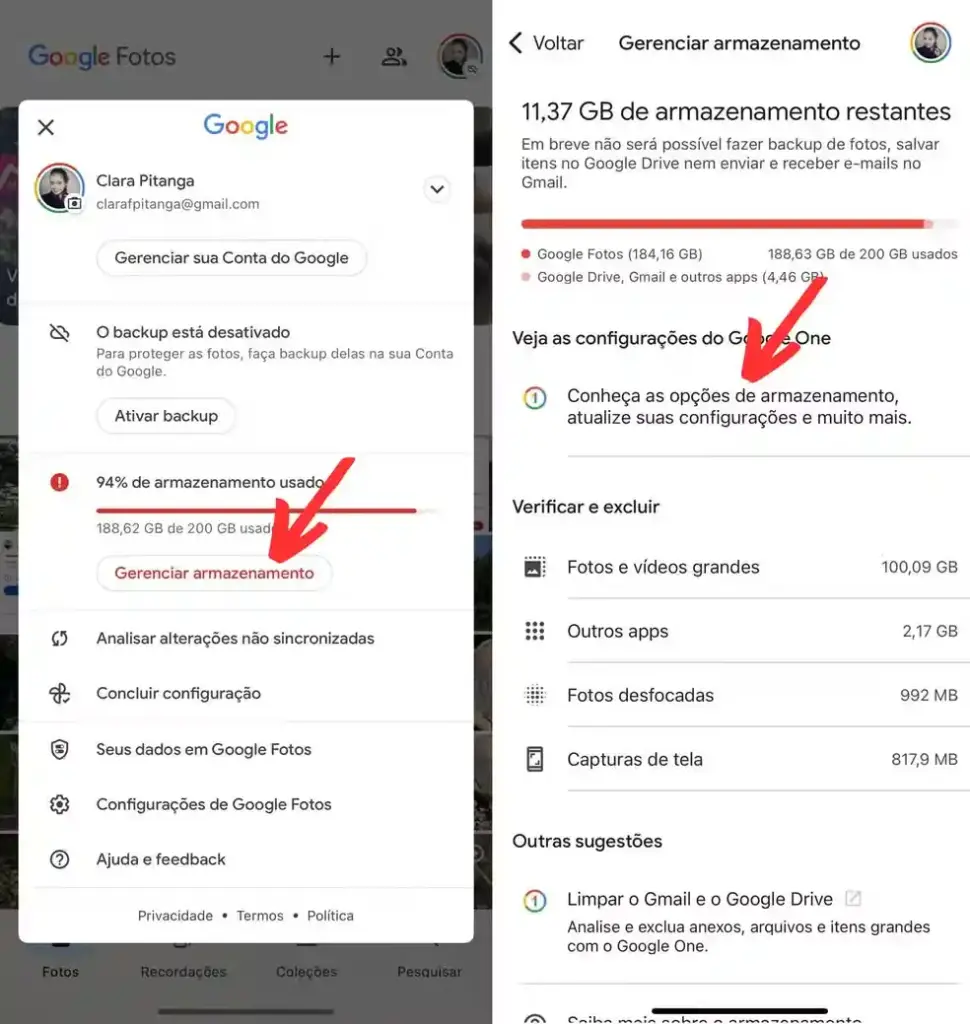
Open the Google Photos app on your Android device. - Check storage space
Tap the avatar icon in the upper right corner, then tap “Storage” to see how much space is being used and how much is still available.
- Delete large photos and videos
- Tap on “Manage storage” or “Free up space” ;
- Select the “Large photos and videos” option to identify larger files that can be deleted;
- Select the photos and videos you want to delete and tap the trash can icon to remove them.
- Clean the trash can.
After deleting, the photos go to the trash and will remain there for 30 days. To free up space immediately, go to “Trash” , select “Empty” to permanently delete them. - Free up space automatically.
If you enable the “Free up space” option, Google Photos can remove photos and videos already saved in the cloud, freeing up space on your device without permanently deleting them.
For iOS (iPhone/iPad):
- Open the Google Photos app.
Launch Google Photos on your iOS device. - Check storage
Tap the avatar icon in the upper right corner and go to “Storage” to see how much space has been used. - Delete large photos and videos
- In the “Manage storage” menu, look for “Large photos and videos” .
- Select the files you want to delete and tap the trash can icon to remove them.
- Clean the trash can.
Go to the “Trash,” select the items, and click “Empty” to permanently remove them. - Free up space on your device.
By using the “Free up space” option, Google Photos can remove local copies from your device and keep the photos in the cloud, freeing up iPhone memory without losing the images.
On a computer (via browser):
- Access Google Photos
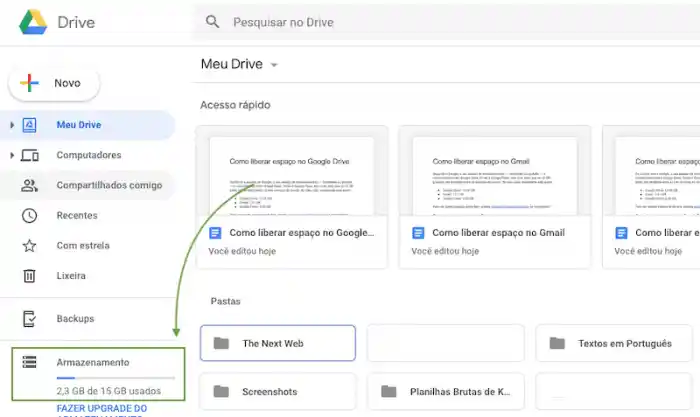
Go to the Google Photos website at photos.google.com . - Check storage
In the bottom left corner, you will see a “Storage” bar that shows how much space is being used.
- Delete large photos and videos
- Click on “Manage storage” ;
- Go to the “Large photos and videos” section to view larger files;
- Select the files and click the trash can icon to delete them.
- Clean the trash can.
After deleting, the media goes to the “Trash” . To free up space immediately, go to the trash and click “Empty Trash” . - Back up photos and videos before deleting them.
If you want to ensure your media is preserved, back it up to your computer before deleting the photos.
Delete Duplicate Photos in Google Photos
One of the simplest ways to free up space is by deleting duplicate photos. Google Photos has a feature that can identify these duplicates, making the process easier. Here's how to delete duplicate photos in Google Photos :
- In Google Photos, go to the Settings menu;
- Enable the Remove Duplicates option. The app will automatically search for duplicate or similar photos and delete them.
Clean the trash can.
Google Photos keeps deleted files in the Trash for 30 days. To free up space immediately, you need to empty the trash.
- Access the Trash :
- Select Empty Trash to permanently delete the photos.
Using Google One
If you're constantly hitting your storage limit, you might consider purchasing more space on Google One , a paid tool that offers extra storage for Google Photos, Drive, and Gmail.
Google One offers different storage plans, with prices varying according to the amount of space needed. Below are the most common plans:
- 100 GB : ideal for those who need more space for photos and emails;
- 200 GB : Great for families or users with many files on Google Drive;
- 2 TB or more : recommended for businesses or users with large volumes of data.
How to Upgrade Your Storage Plan
- Open the Google One app or go to Google One ;
- Tap Subscribe or Change plan ;
- Select your desired plan and complete the payment process.
Media Backup and Security
Before deleting any photos or videos, it's important to ensure your media is safe. Here's how you can back them up.
- Open Google Photos and go to Settings ;
- Enable the Backup and Sync option;
- Make sure your photos and videos are being automatically saved to the cloud.
Deleting photos and videos without backing them up is risky. Once deleted, you won't be able to recover them unless you have a copy saved elsewhere.
Alternatives for Expanding Storage
When your Google Photos storage runs out, there are several ways to expand your capacity without losing important files. While buying more storage on Google One is the most straightforward solution, other options can also be considered depending on your needs.
- Google One: Simple and Integrated Expansion
Google One offers paid plans that increase shared storage space between Google Photos, Google Drive, and Gmail. Additionally, you can share the plan with up to 5 people and have access to expert support. It's a convenient option for those who already use Google services.
- Other Cloud Storage Services
If you're looking for alternatives outside of Google, services like Dropbox , OneDrive , and iCloud are good options. They offer different storage capacities, with free and paid plans, and may be ideal depending on other devices you use. The advantage of these services is the easy synchronization between devices.
- Physical Storage: A More Traditional Option
Devices like external hard drives or portable SSDs offer large storage capacities at a one-time cost, without monthly fees. While convenient and secure, they require a bit more manual management and attention to regular backups.
- Cost-Benefit Comparison
The choice between cloud and physical storage depends on your preferences. The cloud offers ease of access and convenience, while physical storage has the advantage of no recurring costs. Assess your needs to choose the best option.
Restore Items from the Trash
If you accidentally deleted photos or videos from Google Photos , don't worry: it's easy to restore them. When an item is deleted, it goes to the trash and remains there for up to 30 days before being permanently deleted. This recovery process is simple and can be done in a few steps.
To restore items, follow these steps:
- On Android or iOS :
- Open Google Photos and tap the trash can icon (usually located in the sidebar or bottom bar);
- Find the items you want to restore;
- Select the files and tap the Restore option.
- On the computer :
- Go to photos.google.com and click on the Trash menu;
- Select the items to be restored;
- Click Restore and that's it, your files will return to your Google Photos library.
It's worth noting that restoring items from the trash will take up space in your storage again. Therefore, it's important to monitor the available space in your Google account to ensure you're not reaching your storage limit.
Tips for Managing Storage Efficiently
Keeping your Google Photos storage organized and optimized is essential to avoid running out of space. Here are some effective tips for managing your content:
- Clean up regularly : Periodically clean up your storage, deleting photos and videos that are no longer needed. This helps free up space and keep everything organized.
- Reduced quality option: Google Photos offers a “Storage Saver” option. By using it, you store photos and videos at reduced quality, but without losing much of the original quality. This saves a good amount of space;
- Delete duplicate photos: Often, duplicate photos take up space unnecessarily. Use search tools to find and delete these duplicates, ensuring more efficient storage.
- Check the trash: before permanently deleting anything, check your trash . Deleted photos and videos remain there for 30 days, giving you a chance to recover them if you change your mind;
- Consider Google One: If your storage is running low, consider subscribing to Google One . It offers additional plans to expand your storage and keep your files in high quality without worrying about space.
Frequently Asked Questions about Storage in Google Photos
Next, we will clarify these issues in a practical and objective way, to ensure that you have all the information you need to manage your storage space effectively.
1. Can I restore files that I deleted from the Google Photos Trash?
No, once items are deleted from the Recycle Bin, they are permanently erased and cannot be recovered. Therefore, it is crucial to verify and ensure that the files you wish to delete are actually ready to be removed.
2. How do I know if I'm using Google Photos storage correctly?
The best way to check this is by accessing your Google Account and checking your available storage. Google Photos shares space with Gmail and Google Drive, so it's important to monitor your storage usage across all platforms to ensure you don't exceed your limit.
3. Is it possible to store high-quality photos and videos without taking up too much space?
Yes! Google Photos offers a “Storage Saver” backup option that allows you to reduce the quality of images and videos, helping you save space without losing a significant amount of quality.
4. Do I have to pay for Google One to get more storage space on Google Photos?
Not necessarily. If you need more space and don't want to worry about deleting photos or videos, Google One offers paid plans that expand your storage space. However, if you prefer not to pay, you can try freeing up space with the tips we offer throughout this article.
Conclusion
Freeing up space in Google Photos is essential to ensure you always have enough room for new files and to keep your device running smoothly. Follow the tips and steps in this guide to optimize your storage, keeping your photos and videos safe and well-organized.
Sources:

